
Project Overview
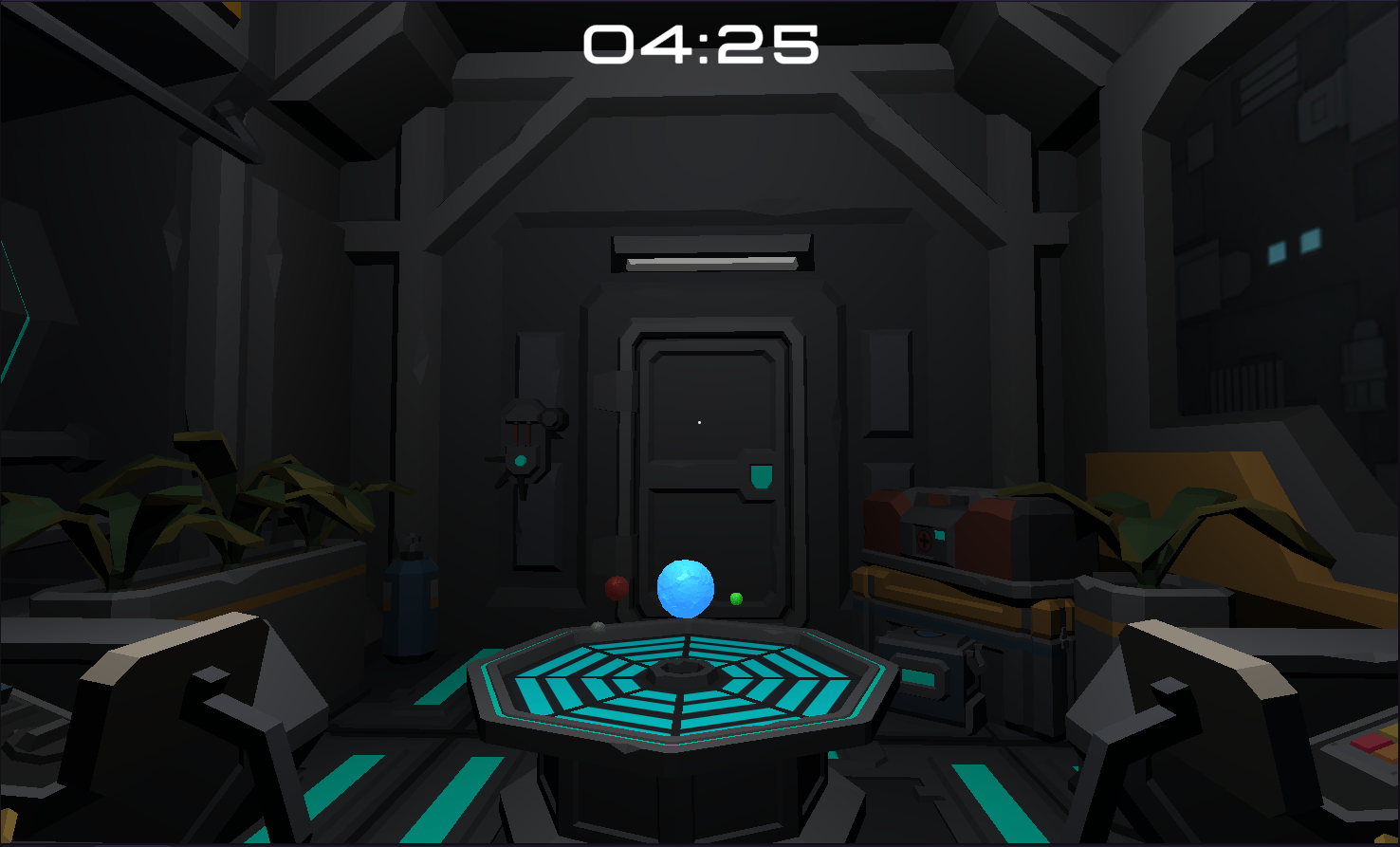
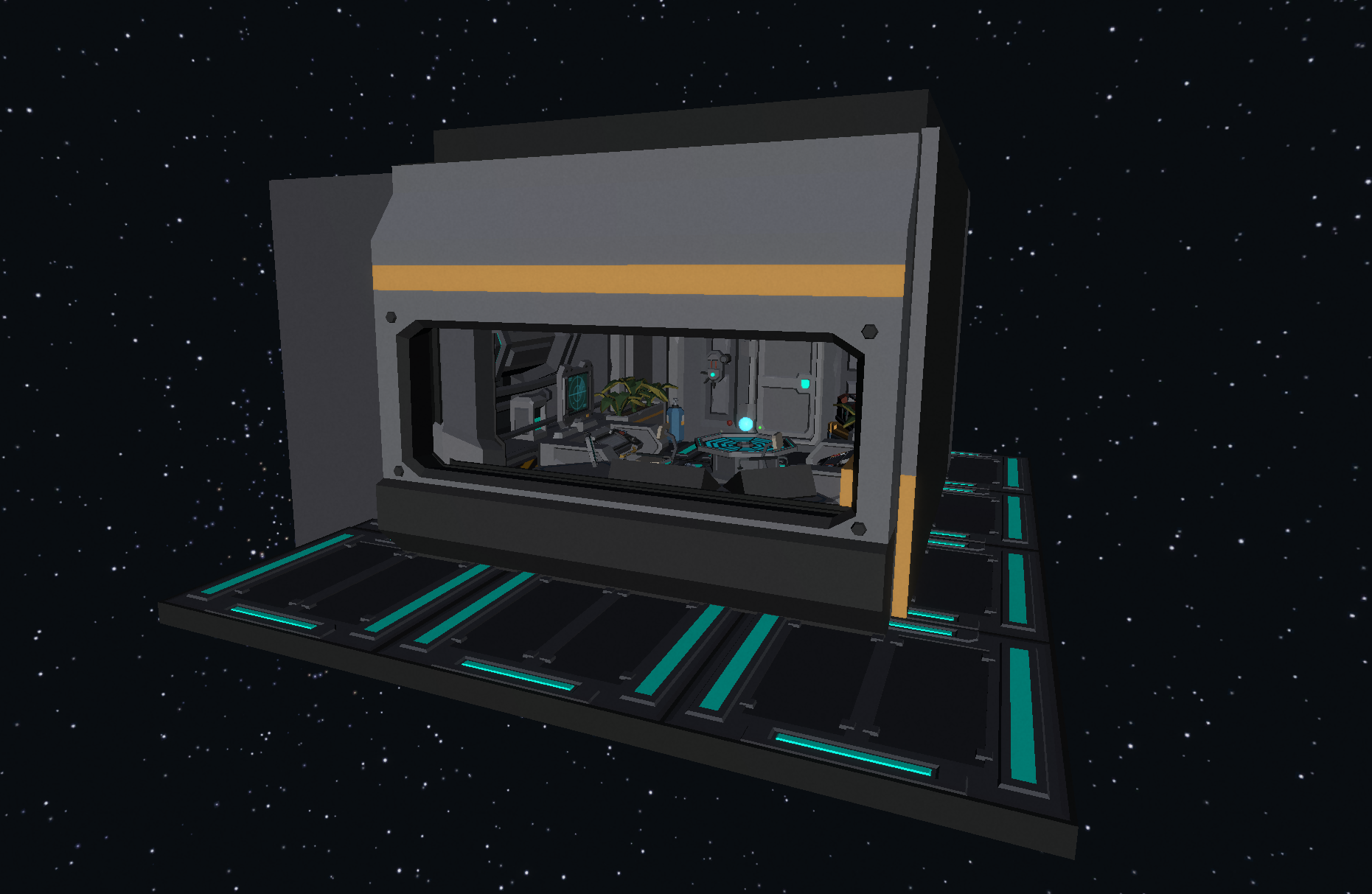
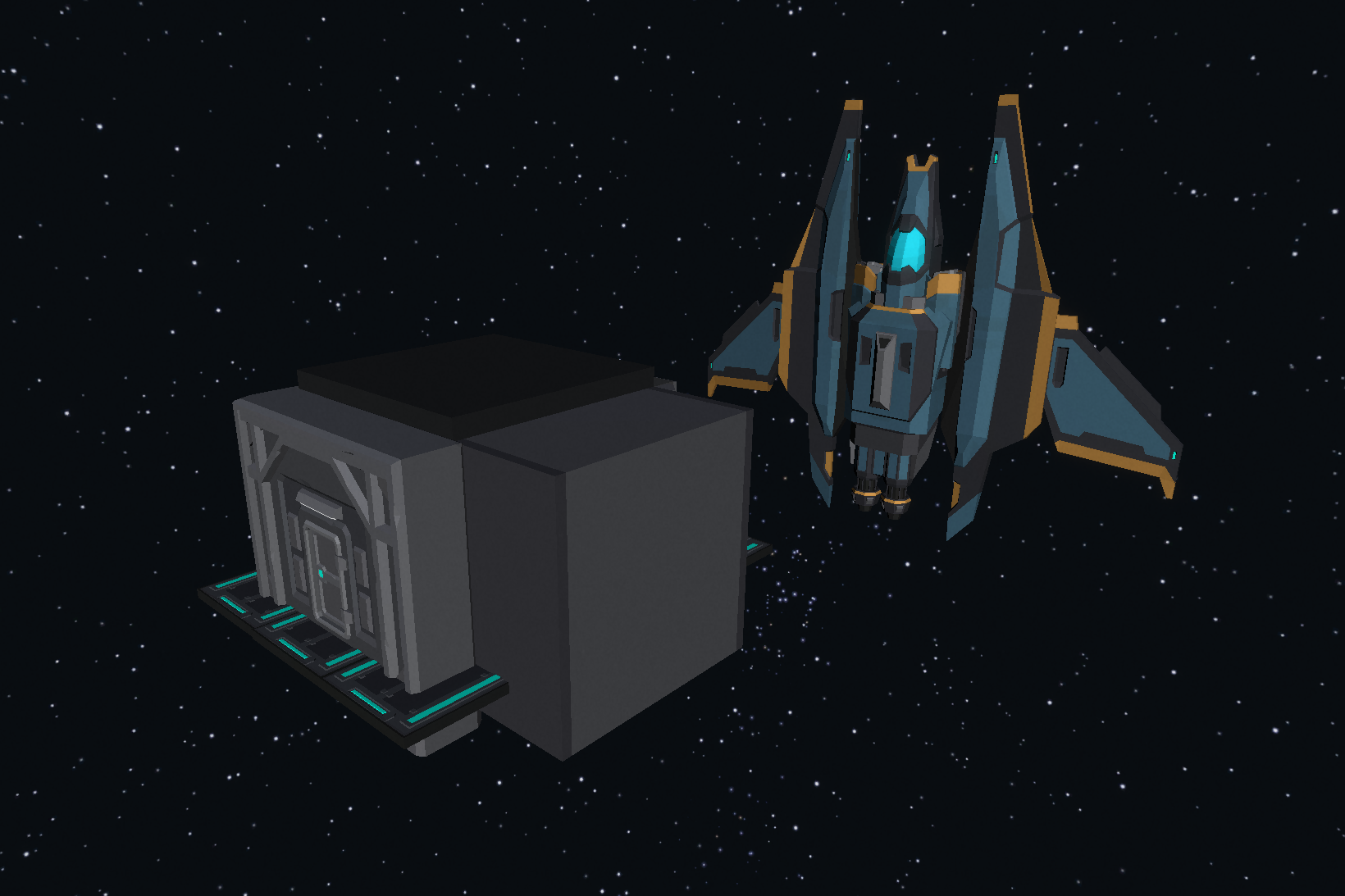
 Cosmic Control Enterprises is a puzzle game set up on The Expanse (James S. A. Corey, 2011), one of the most well-known science fiction book series adapted into a successful TV show. I attempted to give the player the impression that they were in control of a crucial mission, starting the game inside the room I constructed using the assets pack provided by the university: save the Rocinante’s crew first and preserve humanity’s one remaining chance to explore alien worlds and settle habitable planets in the Milky Way and beyond.
It is obvious that the game Please, don’t touch anything! (Four Quarters team, 2015) was the inspiration for this one.
Cosmic Control Enterprises is a puzzle game set up on The Expanse (James S. A. Corey, 2011), one of the most well-known science fiction book series adapted into a successful TV show. I attempted to give the player the impression that they were in control of a crucial mission, starting the game inside the room I constructed using the assets pack provided by the university: save the Rocinante’s crew first and preserve humanity’s one remaining chance to explore alien worlds and settle habitable planets in the Milky Way and beyond.
It is obvious that the game Please, don’t touch anything! (Four Quarters team, 2015) was the inspiration for this one.
Development Time: 3 weeks
Team Size: Solo project
Role: Programmer & Game Designer
Platform: Unity
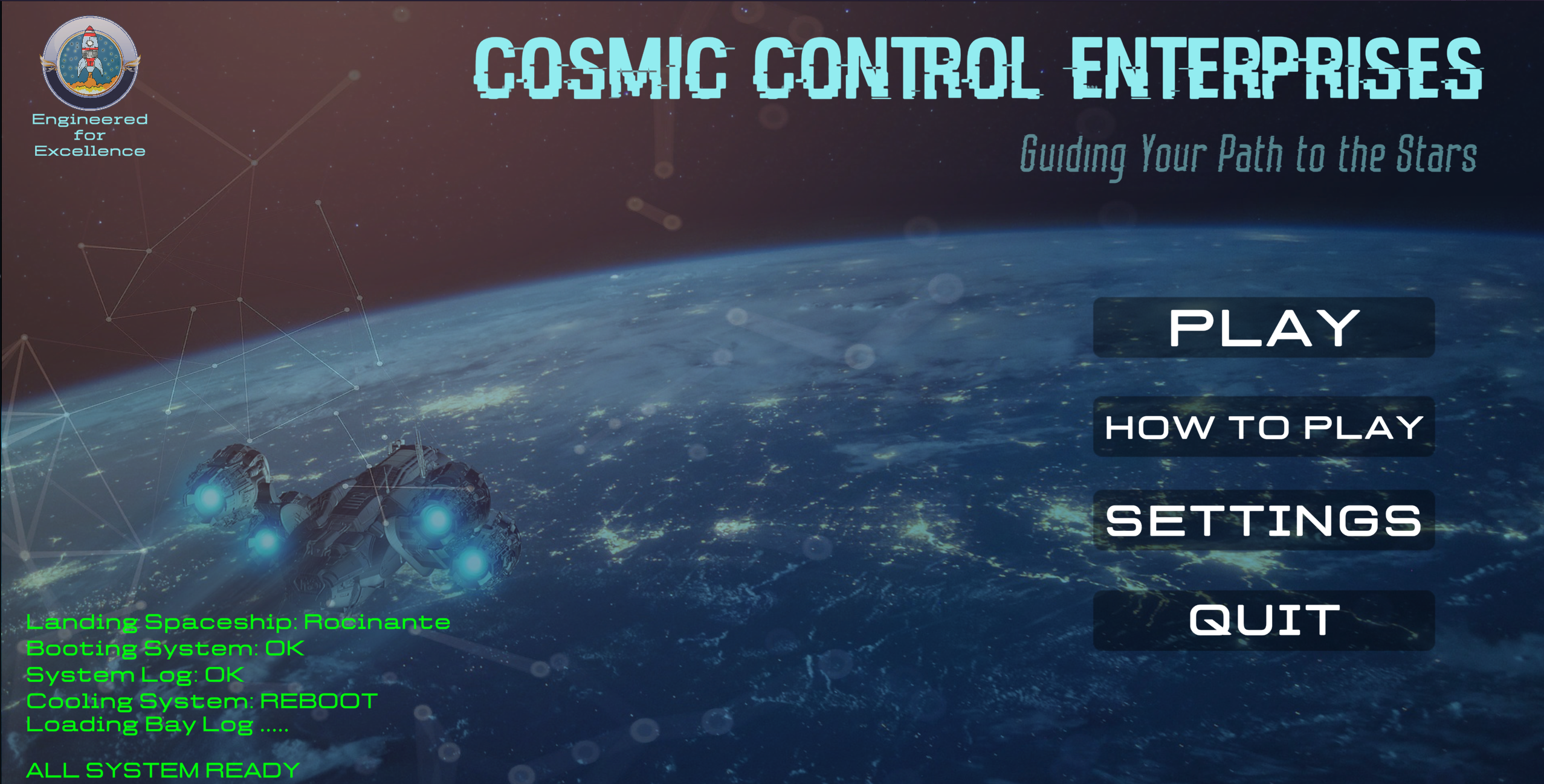
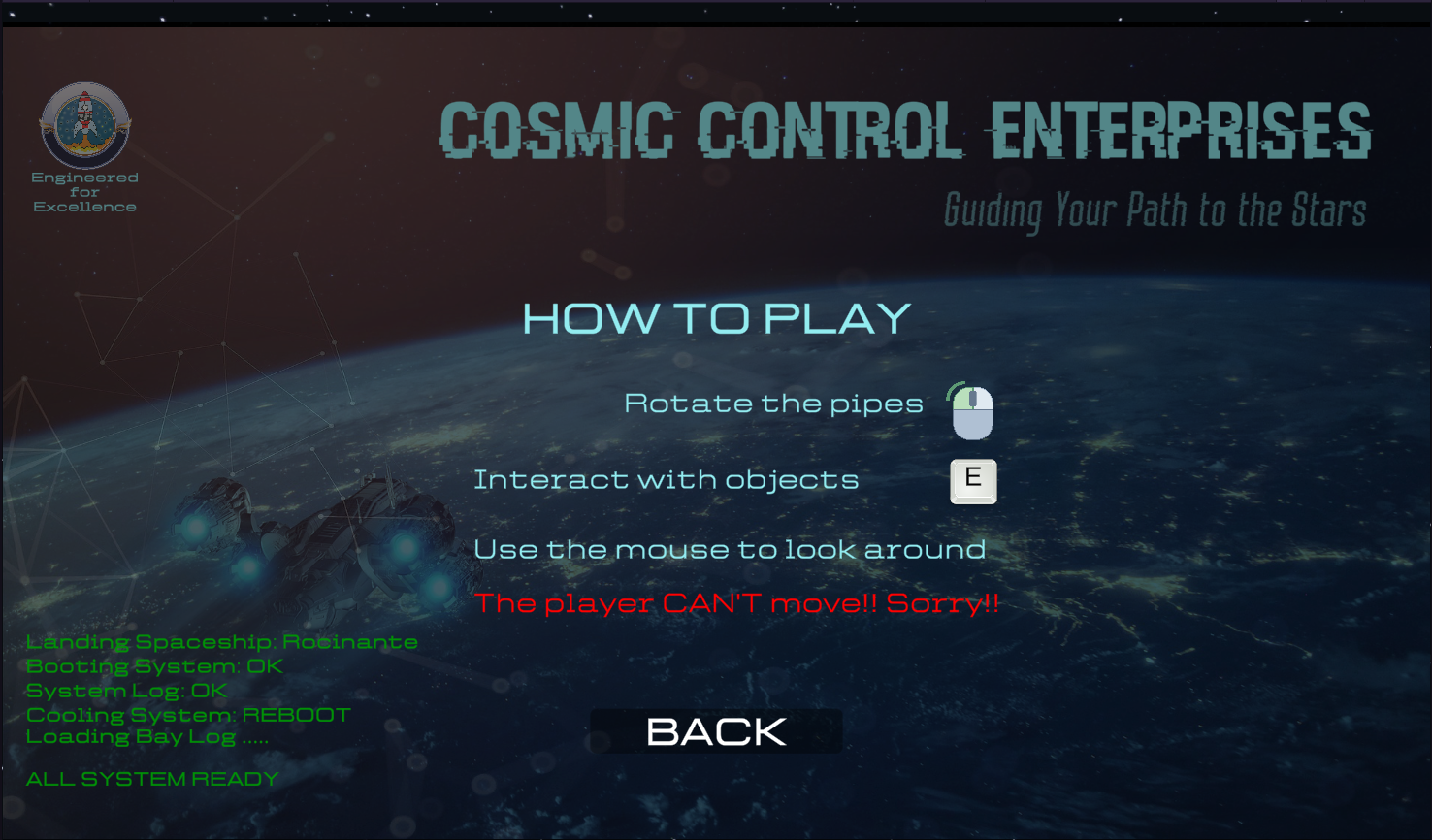
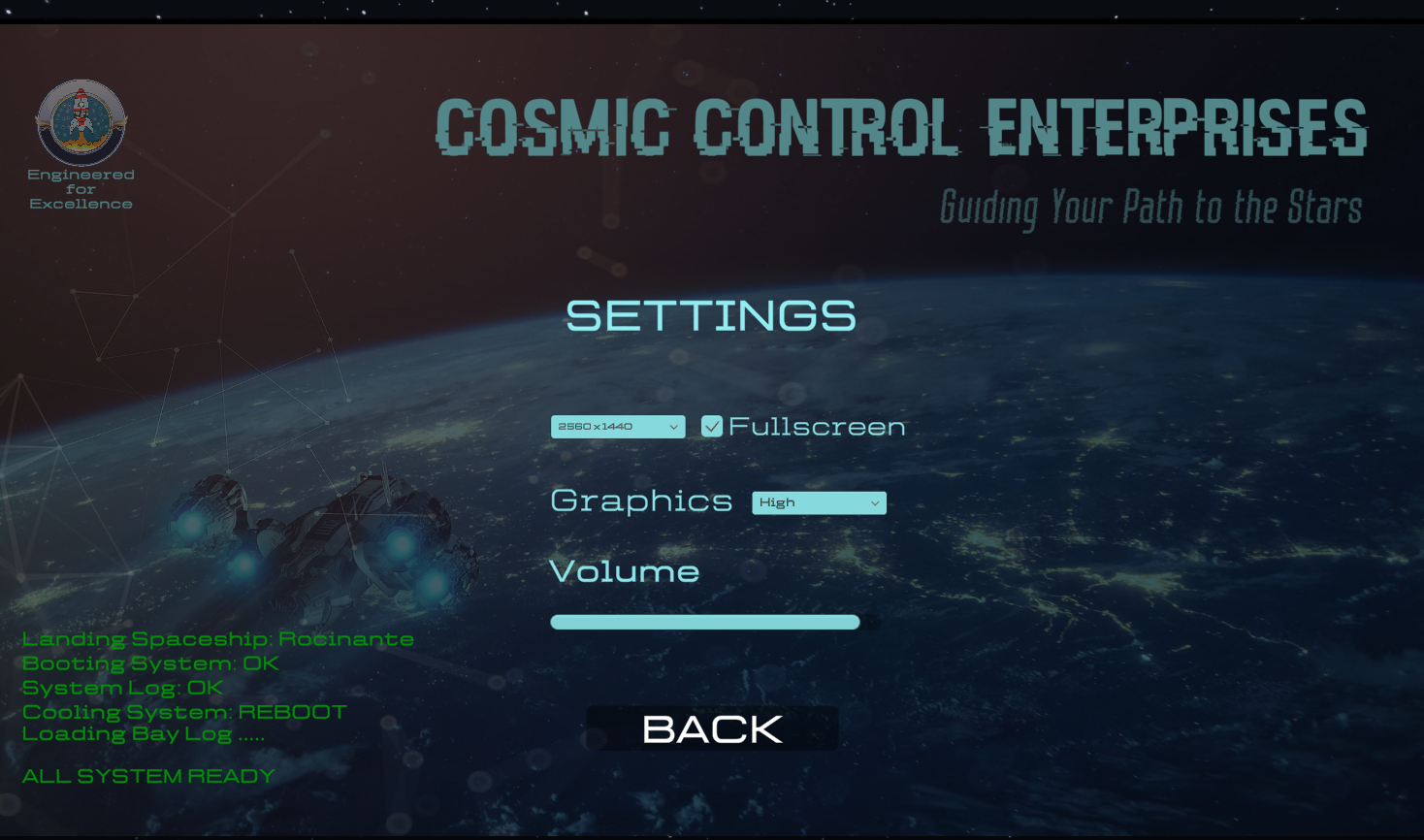
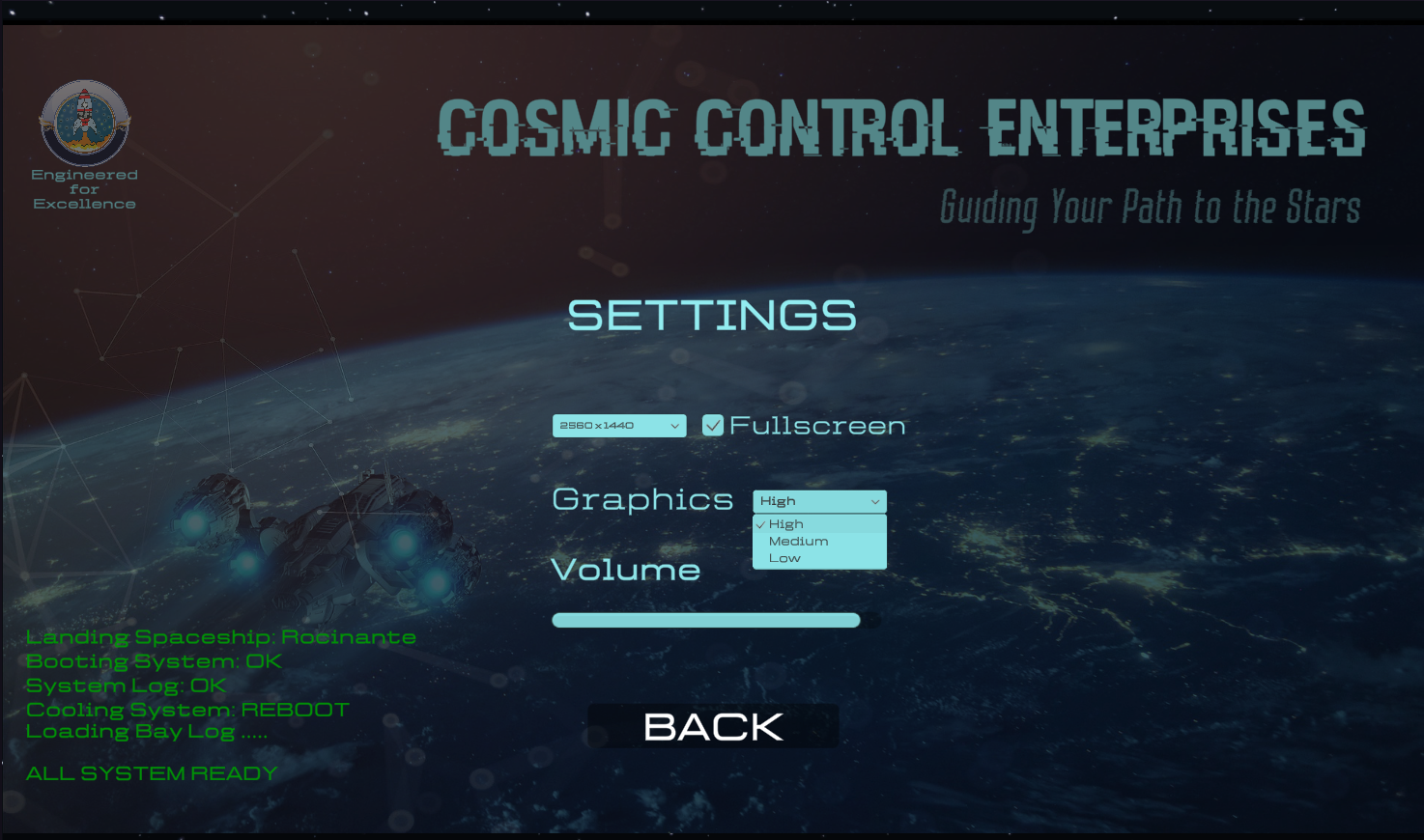
Screenshots

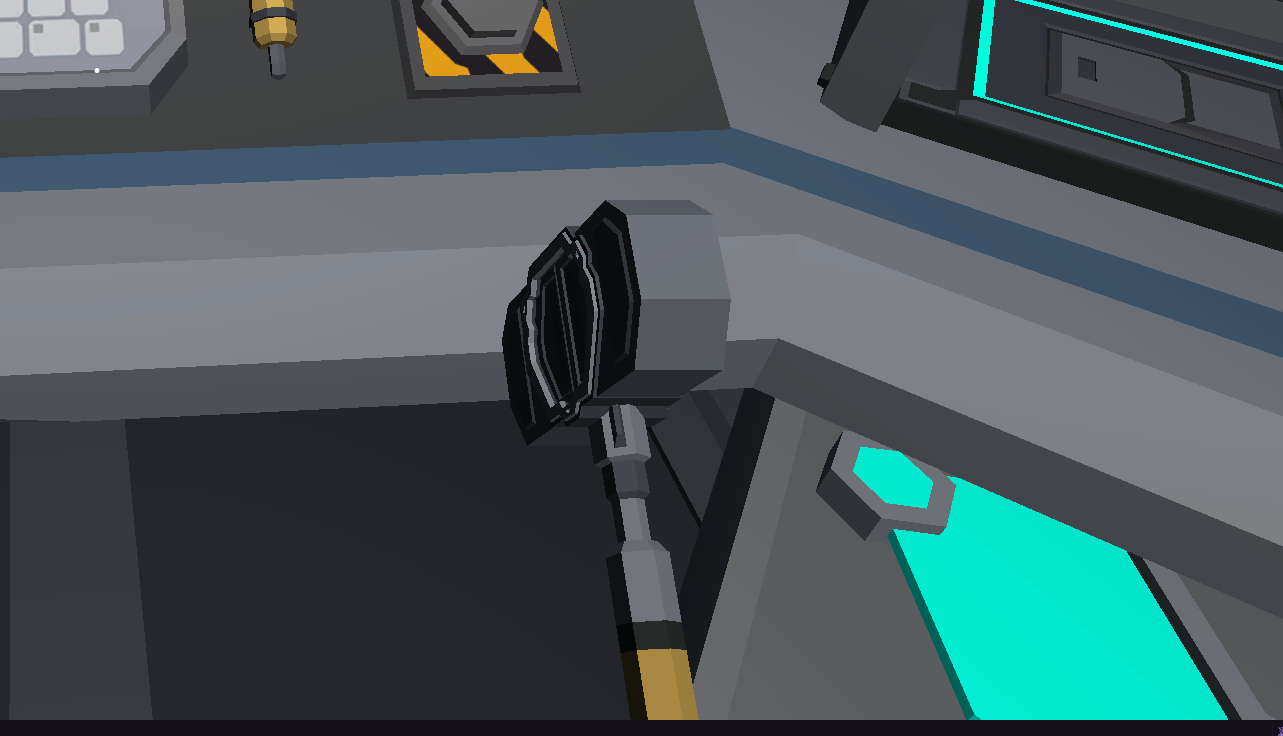
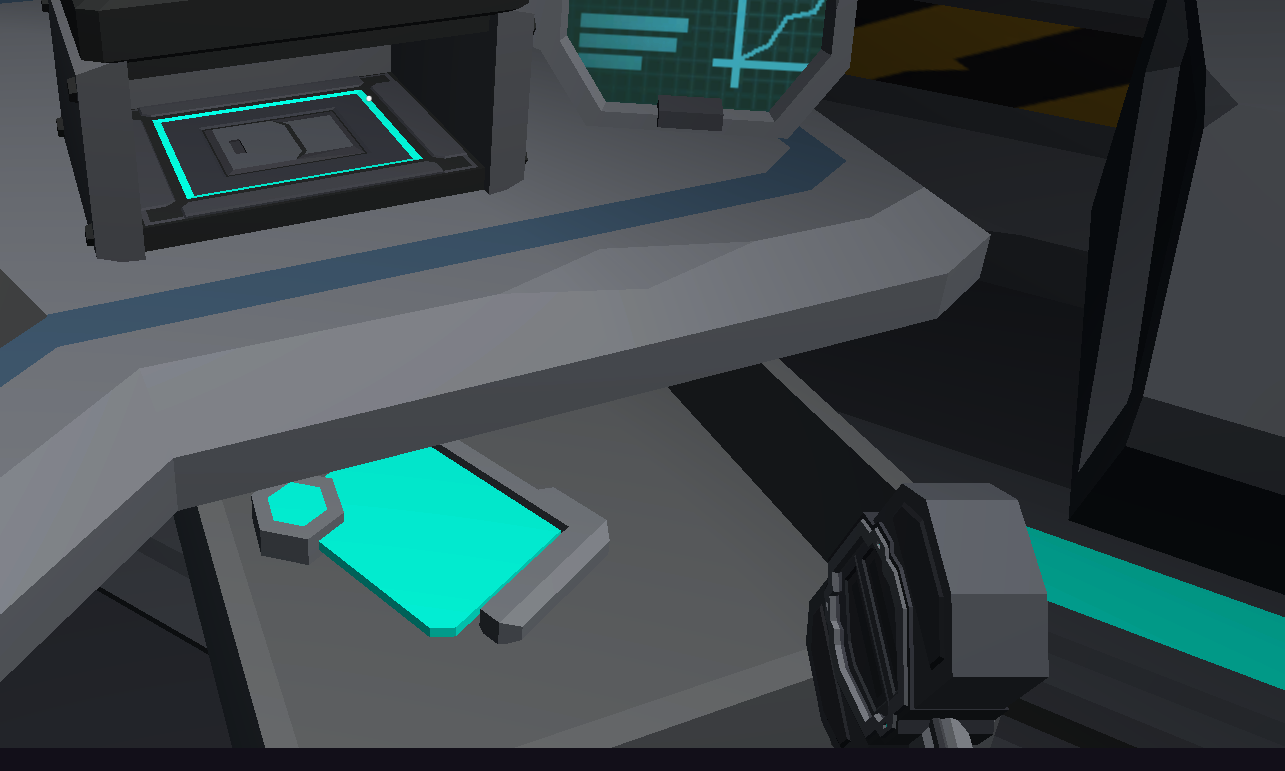
Key Features
🌌 Sci-fi background
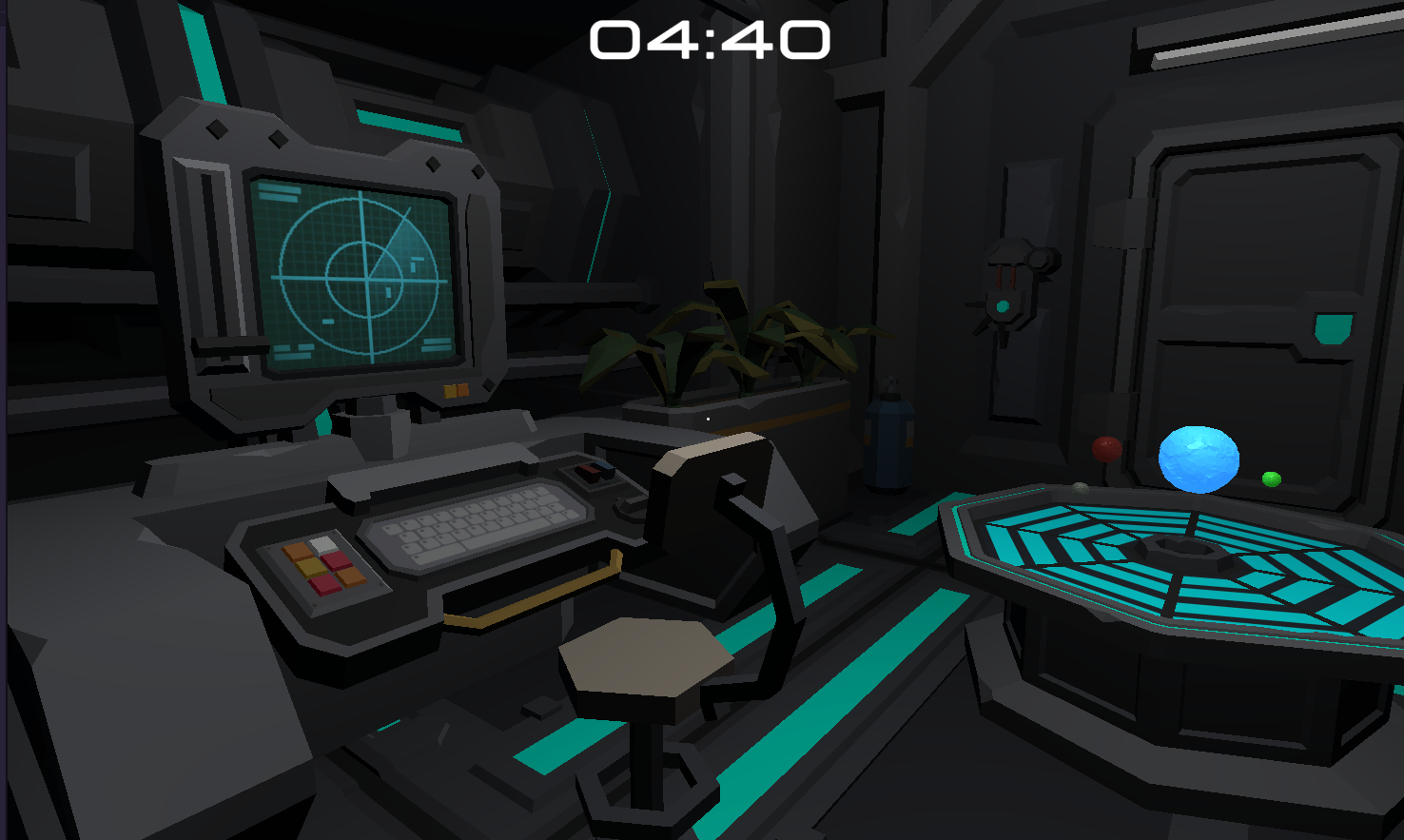
For this project I decided to use the Synty Polygon - Sci-Fi Space Pack perfect for the set up of this game (see Figure 1).
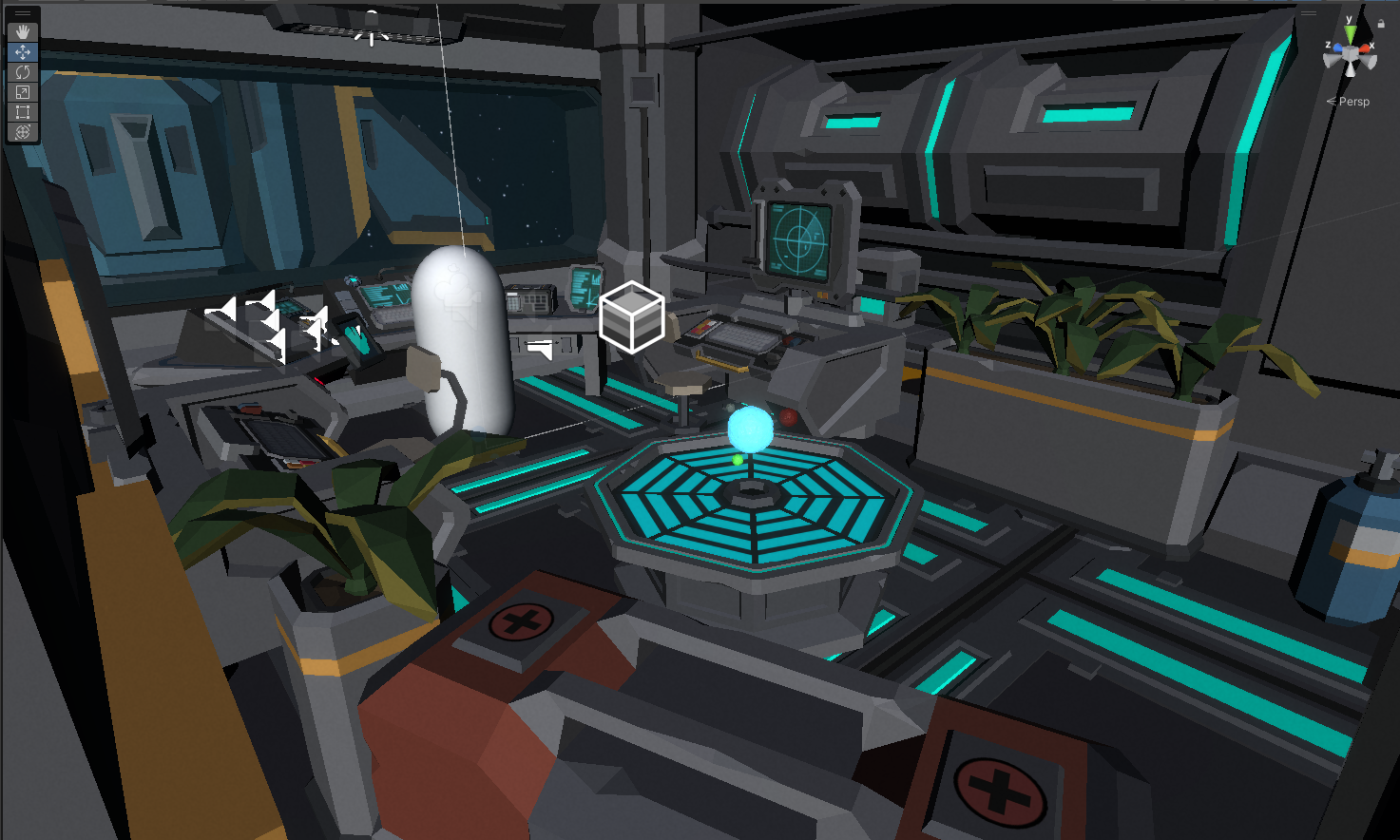
Figure 1: Synty Sci-Fi Space Pack
⚙️ Interacting with The Puzzles
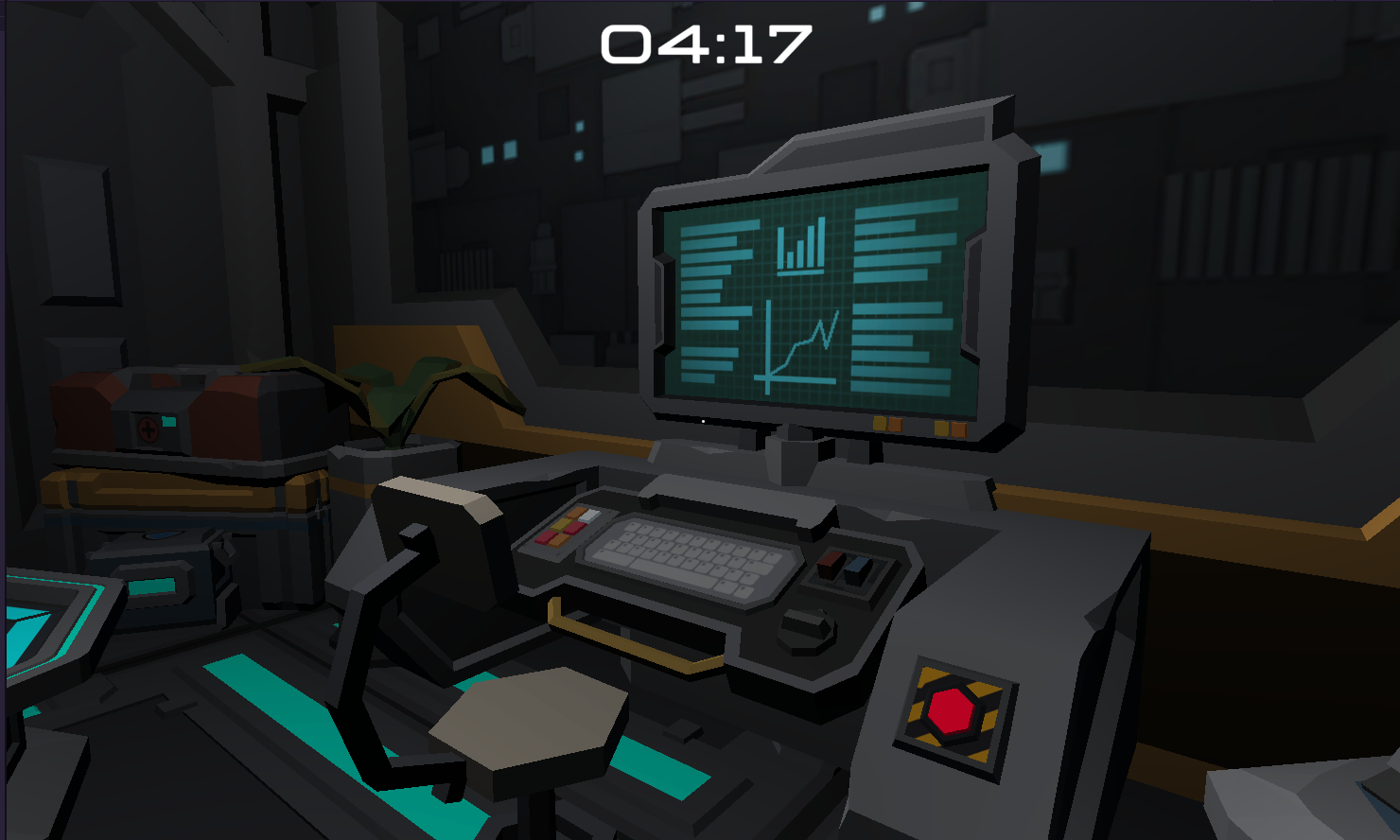
The puzzle in game are available step by step after completing a series of action by the player. The player can just move the camera and interact with the main console (see Figure 2).
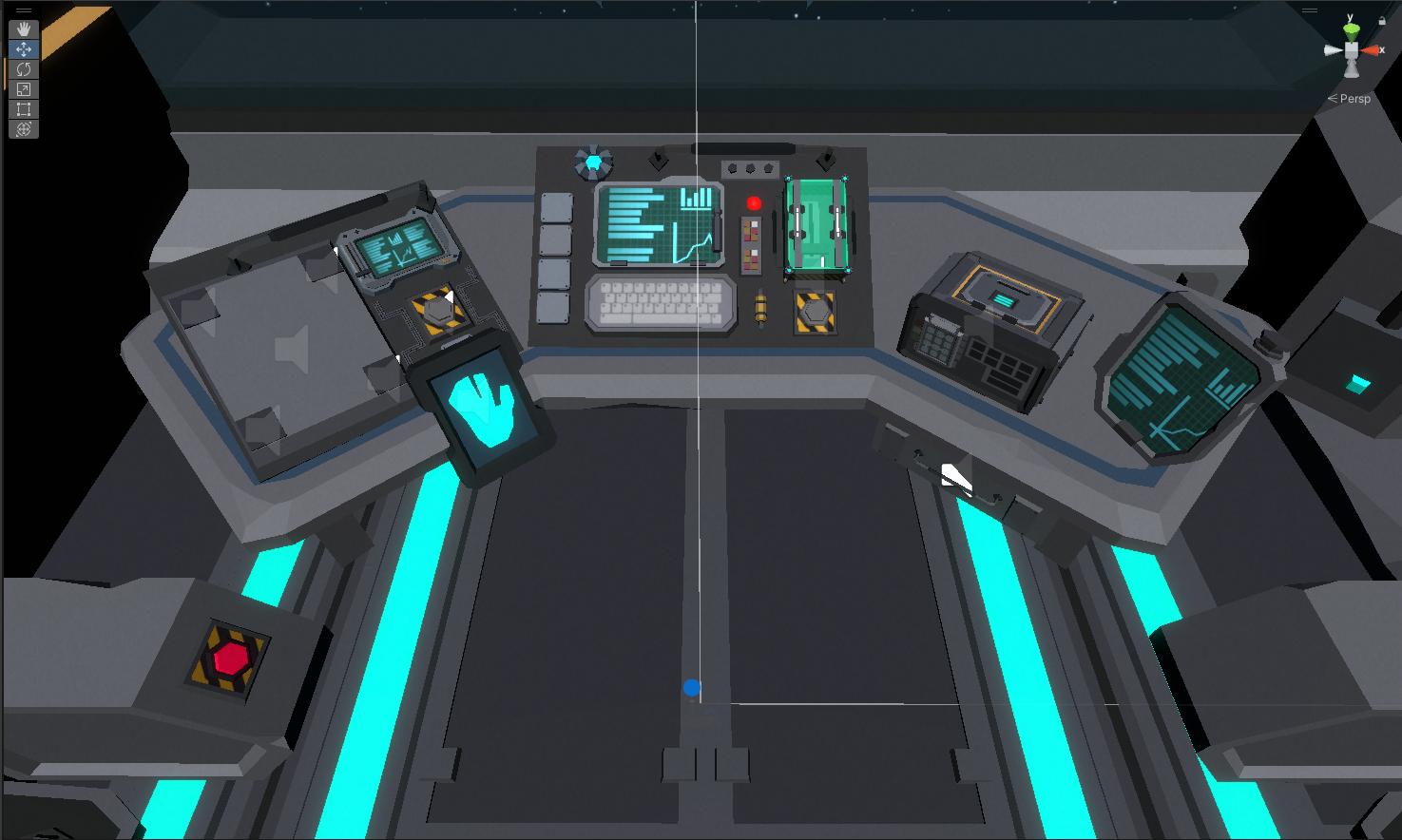
Figure 2: Main Console
⚡ Hint
A hint to opening the safe has been hidden in one of the computer screens (see Figure 3 and 4). I decided to use the number 6765 from the Fibonacci sequence to help the player address an easy mathematics problem.
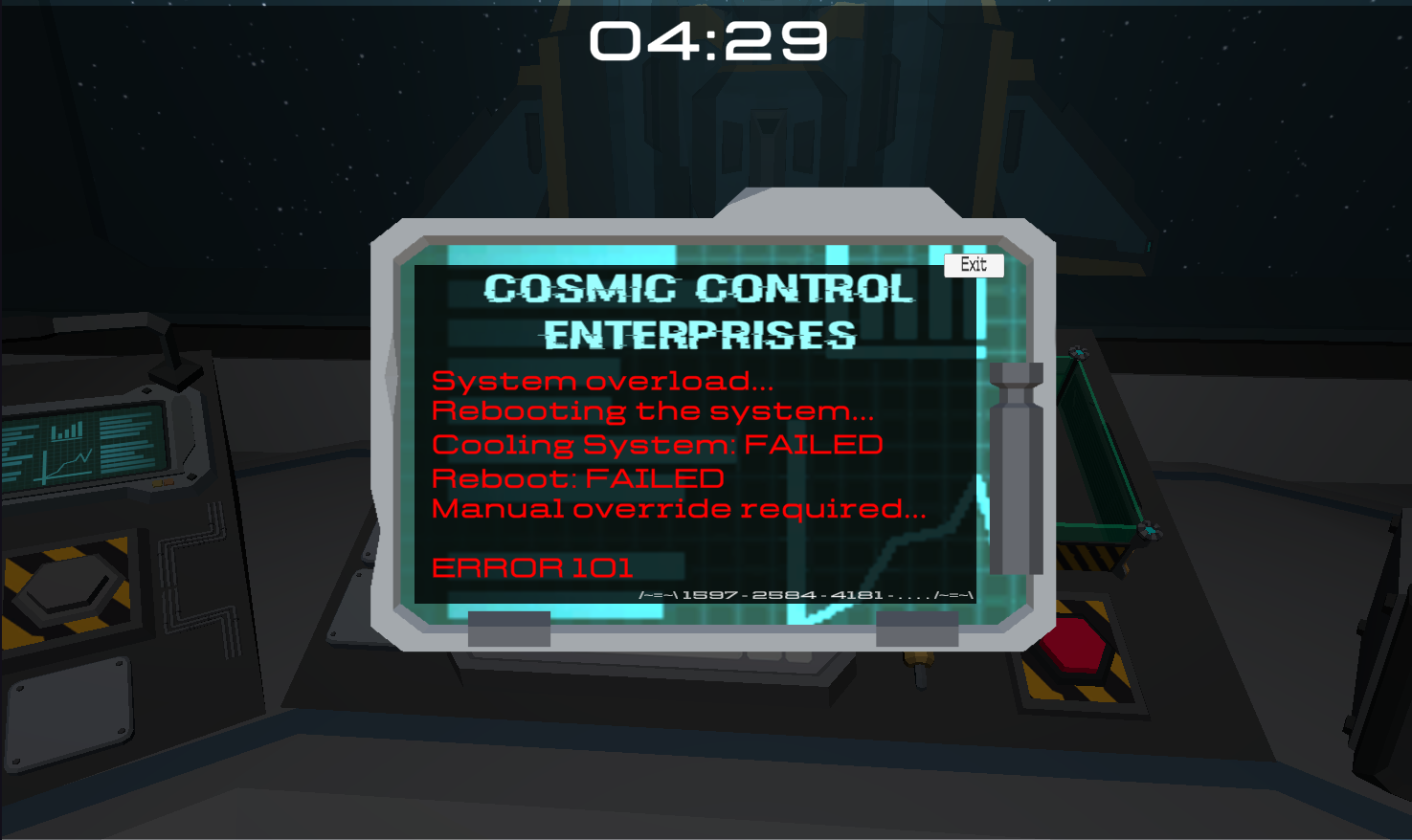
Figure 3: Error Console

Figure 4: Hint Detail
🧑🚀 Win & Lose Conditions
🚀 Win Condition
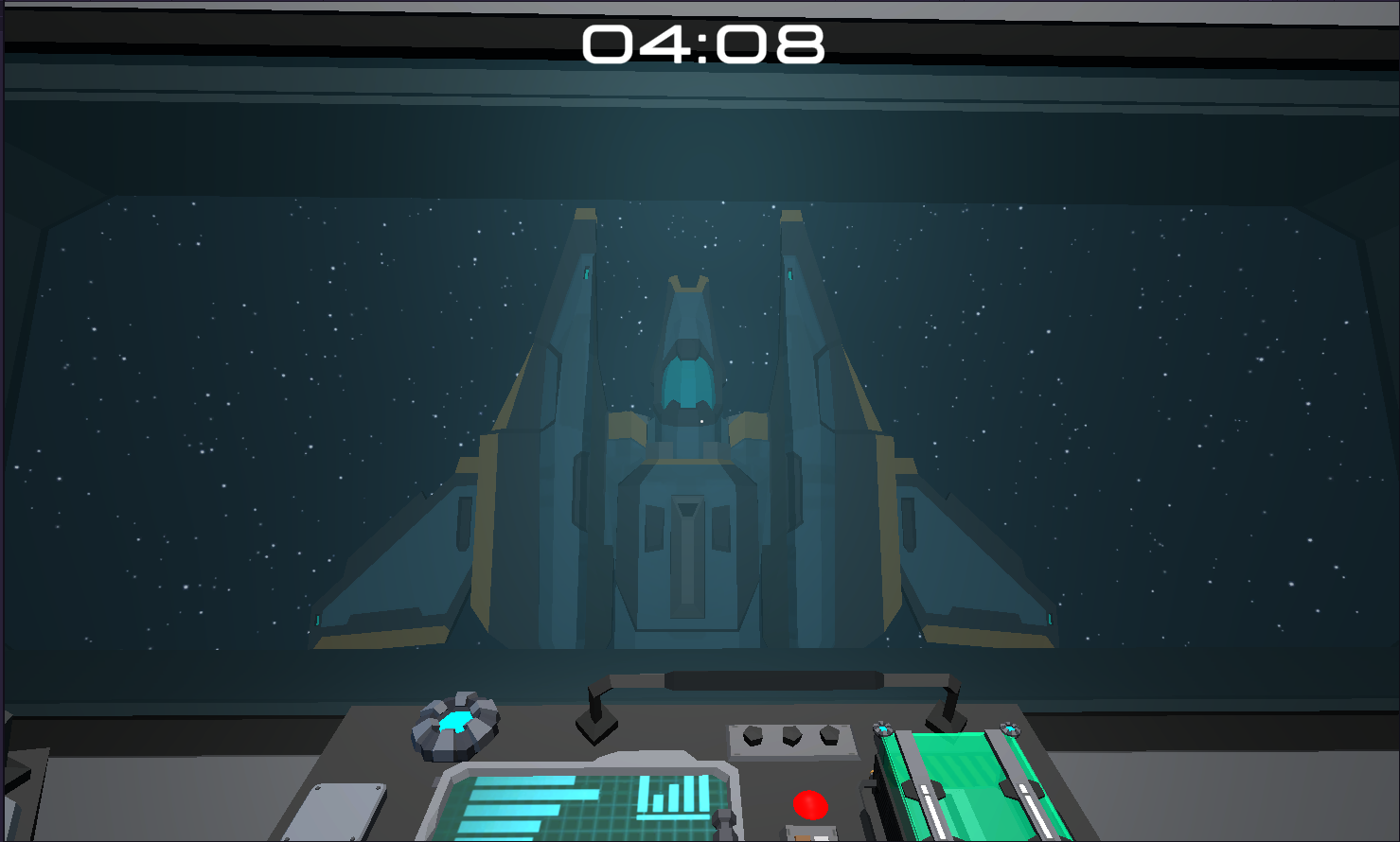
To access the “Win screen” (see Figure 5), players must complete a series of puzzles in the game within 5 minutes countdown(see Figure 6). In the first, the player must learn how to press specific buttons to activate the various consoles.
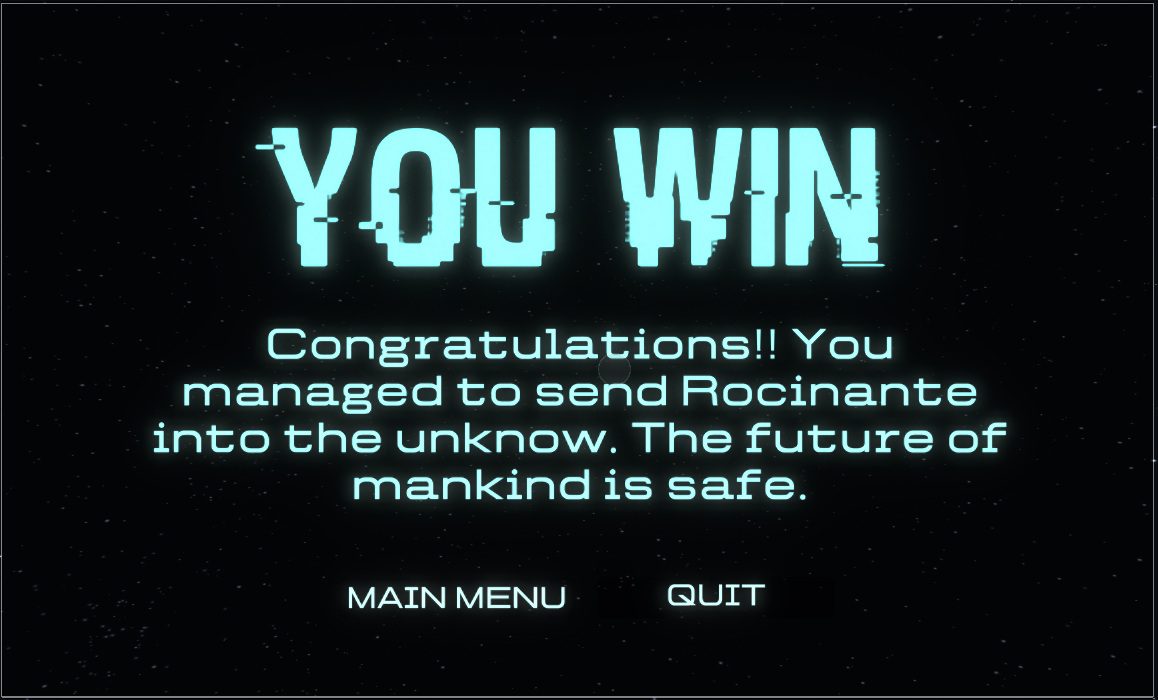
Figure 5: Win Screen

Figure 6: Countdown
💥 Lose Condition
If the player is not able to finish the puzzle within 5 minutes, they will get a Lose Screen (see Figure 7).
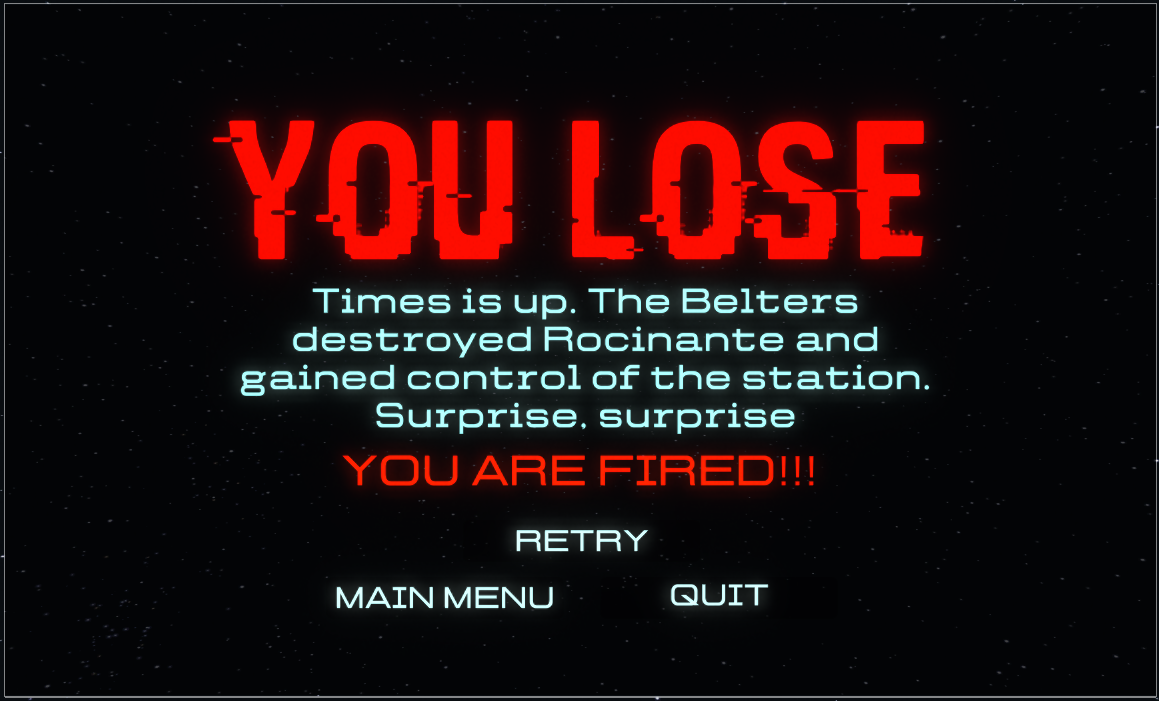
Figure 7: Lose Screen
Technical Implementation
✨ Interaction System
The interaction system is based on the abstract class Interactable
1
2
3
4
5
6
7
8
9
10
11
12
13
14
15
16
17
18
19
20
21
22
23
24
25
26
27
public abstract class Interactable : MonoBehaviour
{
    public bool useEvents;

    // Message displayed to the player when looking at an interactable
    public string promptMessage;

    /// <summary>
    /// This function will be called from our player
    /// </summary>
    public void BaseInteract()
    {
        if (useEvents)
        {
            GetComponent<InteractionEvent>().onInteract.Invoke();
        }
        Interact();
    }

    /// <summary>
    /// This is a template function to be overridden by our subclasses
    /// </summary>
    protected virtual void Interact()
    {

    }
}
This class is implemented in every class of an interactable. As an example inside of the class Drawer the UI is showing a message on screen where the player can interact with the object. The message can be modified inside of the text prompt (Prompt Message) of Unity inspector from the script attached to the asset (see Figure 8).
1
2
3
4
5
6
7
8
9
10
11
12
13
14
15
16
17
18
19
20
21
22
23
24
25
26
27
28
29
30
31
32
33
34
35
public class Drawer : Interactable
{
    [SerializeField]
    private GameObject drawer;

    [SerializeField]
    private GameObject pad;

    private bool isOpen;

    public AudioSource drawerSound;

    private void Start()
    {

    }

    protected override void Interact()
    {
        ToggleDrawer();
    }

    private void ToggleDrawer()
    {
        isOpen = !isOpen;
        drawer.GetComponent<Animator>().SetBool("isOpen", isOpen);
        drawer.GetComponentInChildren<MeshCollider>().enabled = false;
        pad.GetComponent<MeshCollider>().enabled = true;
    }

    public void PlaySound()
    {
        drawerSound.Play();
    }
}

Figure 8: Unity Inspector on Drawer Script
Also the script is using a audio sound source that is referenced in the script. The sound is triggered by the Interaction Event (see Figure 9).
1
2
3
4
public class InteractionEvent : MonoBehaviour
{
    public UnityEvent onInteract;
}

Figure 9: Unity Inspector on Interaction Event Script
Finally, for every interactable objects in the game the class PlayerInteract has the Update method that is checking if the object is interactable, using a Raycast, returning the prompt message, and invokes the abstract method in the Interactable class that is been overridden in the Drawer class for instance. This is triggering the animation that allows the player to open the drawer and interact with the pad inside of it.
1
2
3
4
5
6
7
8
9
10
11
12
13
14
15
16
17
18
19
20
21
22
23
24
25
void Update()
    {
        playerUI.UpdateText(string.Empty);

        // Create a raycast at the center of the camera
        Ray ray = new Ray(cam.transform.position, cam.transform.forward);

        Debug.DrawRay(ray.origin, ray.direction * distance);

        // This variable is storing the collisision info
        RaycastHit hitInfo;

        if(Physics.Raycast(ray, out hitInfo, distance, mask))
        {
            if(hitInfo.collider.GetComponent<Interactable>() != null)
            {
                Interactable interactable = hitInfo.collider.GetComponent<Interactable>();
                playerUI.UpdateText(interactable.promptMessage);
                if (inputManager.onFoot.Interact.triggered)
                {
                    interactable.BaseInteract();
                }
            }
        }
    }
⏱️ The Timer
The timer is a simple script that start the countdown when the player starts the game.
1
2
3
4
5
6
7
8
9
10
11
12
13
14
15
16
17
18
19
20
21
22
23
24
25
26
27
28
29
30
31
32
33
34
35
36
37
public class Timer : MonoBehaviour
{
    [SerializeField]
    TextMeshProUGUI timerText;

    [SerializeField]
    float remainingTime;

    [SerializeField]
    private GameObject gameOverScreen;

    // Update is called once per frame
    void Update()
    {
        int minutes;
        int seconds;


        if (remainingTime > 0)
        {
            remainingTime -= Time.deltaTime;
        }
        if (remainingTime < 0)
        {
            remainingTime = 0;


            timerText.color = Color.red;

            gameOverScreen.SetActive(true);
        }

        minutes = Mathf.FloorToInt(remainingTime / 60);
        seconds = Mathf.FloorToInt(remainingTime % 60);
        timerText.text = string.Format("{0:00}:{1:00}", minutes, seconds);
    }
}
🧠 Main Puzzles
🧩 Keypad Puzzle
The player can interact with the keypad (see Figure 10) right from the beginning of the game (see Figure 11 ).
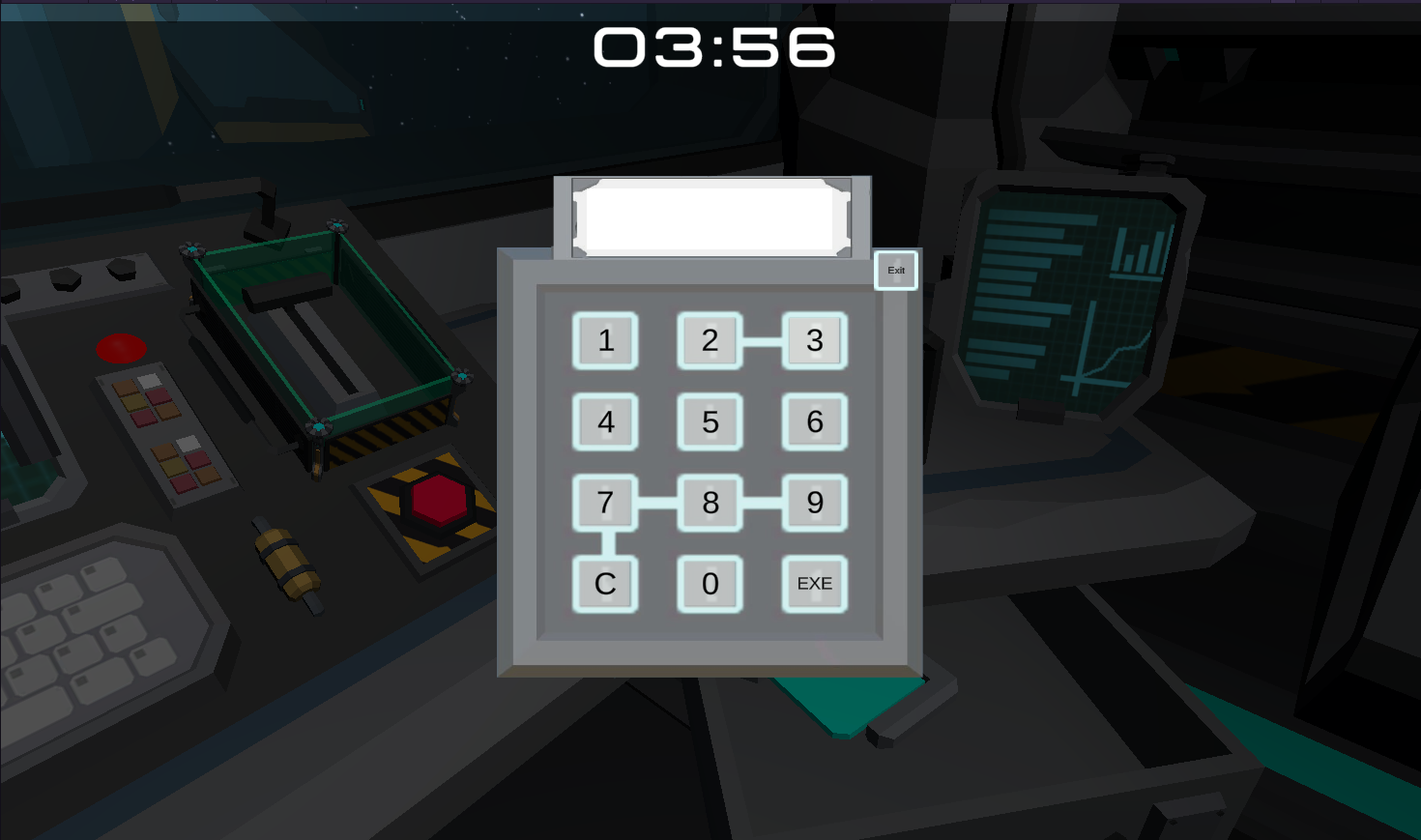
Figure 10: The Keypad

Figure 11: The Safe
The keypad is a script that verifies the player’s input number; if the numbers are correct, a brief animation will play and the safe will open revealing a hammer that the player can use to break the seals (see Figure 12).

Figure 12: The Hammer in the safe
1
2
3
4
5
6
7
8
9
10
11
12
13
14
15
16
17
18
19
20
21
22
23
24
25
26
27
28
29
30
31
32
33
34
35
36
37
38
39
40
41
42
43
44
45
46
47
48
49
50
51
52
53
54
55
56
57
58
59
60
61
62
63
64
65
66
67
68
69
70
71
72
73
74
75
76
77
78
79
80
81
82
83
84
85
86
87
88
89
90
91
92
93
94
95
96
97
98
public class Keypad : MonoBehaviour
{
    public TextMeshProUGUI textOb;

    public string answer = "1412";

    private bool isOpen;


    [SerializeField]
    private GameObject keypadOB;

    [SerializeField]
    private GameObject keypad;

    [SerializeField]
    private GameObject player;

    [SerializeField]
    private GameObject safeDoor;

    [SerializeField]
    private GameObject hammerHandle;

    public AudioSource keypadSound;

    public bool isTheCodeValid = false;

    void Update()
    {
        if (keypadOB.activeInHierarchy)
        {
            player.GetComponent<InputManager>().enabled = false;
            //playerUI.SetActive(false);
            Cursor.visible = true;
            Cursor.lockState = CursorLockMode.None;
        }
    }

    public void PlaySound()
    {
        keypadSound.Play();
    }

    public void Number(int number)
    {
        textOb.text += number.ToString();
    }

    public void Execute()
    {
        if (textOb.text == answer)
        {
            textOb.text = "Valid";
            isTheCodeValid = true;
        }
        else
        {
            textOb.text = "Invalid";
            isTheCodeValid = false;
        }
    }

    public void Clear()
    {
        textOb.text = "";
    }

    public void Exit()
    {
        if (!isTheCodeValid)
        {
            player.GetComponent<InputManager>().enabled = true;
            //playerUI.SetActive(true);
            Cursor.visible = false;
            textOb.text = "";
            keypadOB.SetActive(false);
        }
        else
        {
            player.GetComponent<InputManager>().enabled = true;
            //playerUI.SetActive(false);
            Cursor.visible = false;
            Cursor.lockState = CursorLockMode.None;
            keypadOB.SetActive(false);
            StartSafeDoorAnimation();
            hammerHandle.GetComponent<MeshCollider>().enabled = true;
            //endScreenScript.ShowEndScreen();
        }
    }

    private void StartSafeDoorAnimation()
    {
        isOpen = !isOpen;
        safeDoor.GetComponent<Animator>().SetBool("isOpen", isOpen);
        keypad.GetComponent<MeshCollider>().enabled = false;
    }
}
After pulling the first lever, a screen appears with a warning message, providing all the errors that occurred during the ship’s attempt to launch into space. There is also a hint on what the right password for the keypad is (see Figure 3). One of the numbers in the Fibonacci sequence (6765) is the correct password. To make it easier for the player to understand, I also added three more sequence numbers to the clue (see Figure 4).
🧩 Breaking the Seals Puzzle
The pipe puzzle is hidden beneath the panel that can be moved when the seals are broken, so doing this is essential to moving on to the next puzzle (see Figure 13-14).
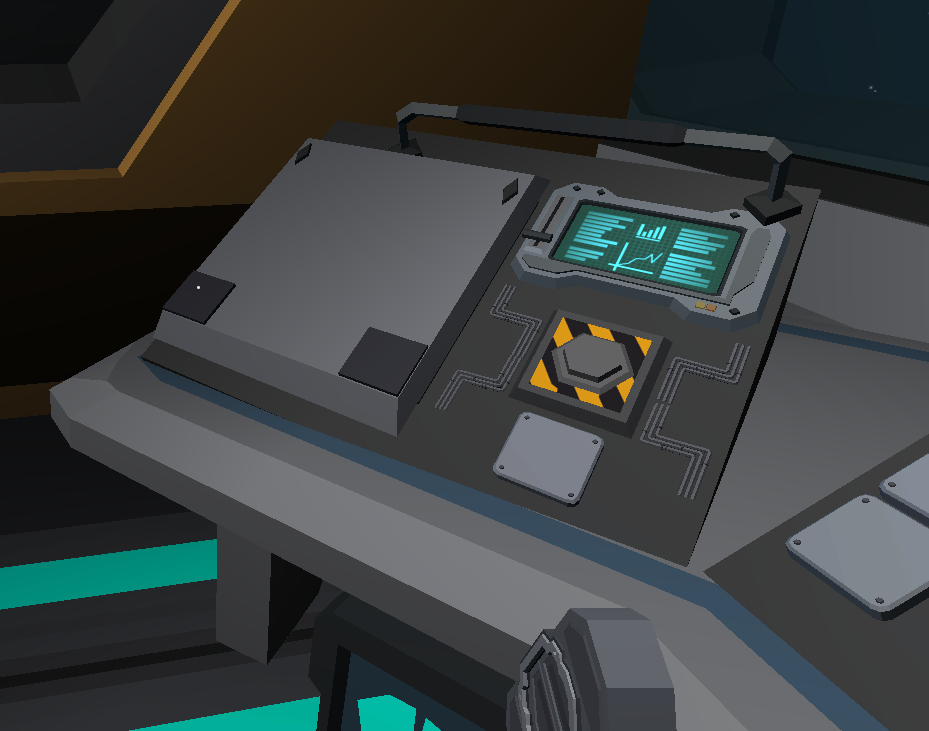
Figure 13: Pipe Panel Seals
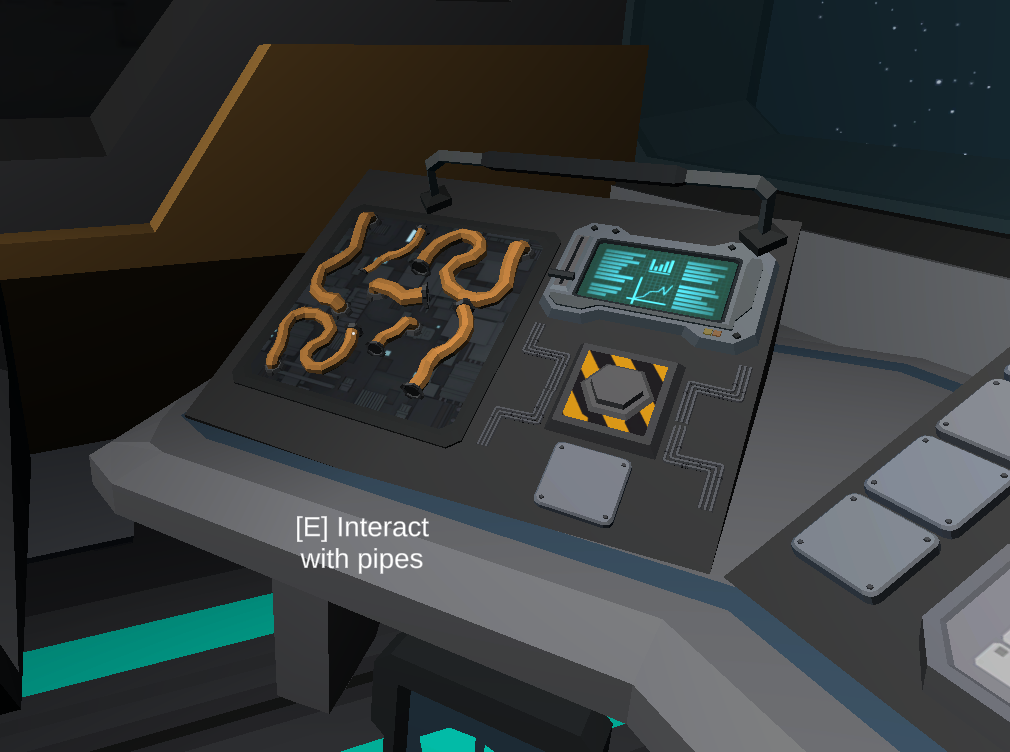
Figure 14: Pipe Panel
1
2
3
4
5
6
7
8
9
10
11
12
13
14
15
16
17
18
19
20
21
22
23
24
25
26
27
28
29
30
31
32
33
34
35
36
37
38
39
40
41
42
43
44
45
46
public class PipesPanel : Interactable
{
    [SerializeField]
    private GameObject pipesPanelMovable;

    [SerializeField]
    private GameObject pipesInteractable;

    private bool areSealsBroken;

    public AudioSource movingThePanelSound;


    // Start is called before the first frame update
    void Start()
    {
        pipesPanelMovable.GetComponentInChildren<BoxCollider>().enabled = false;
    }

    // Update is called once per frame
    void Update()
    {

    }

    protected override void Interact()
    {
        TogglePanel();
    }

    private void TogglePanel()
    {
        areSealsBroken = !areSealsBroken;
        pipesPanelMovable.GetComponent<Animator>().SetBool("areSealsBroken", areSealsBroken);
        pipesPanelMovable.GetComponent<BoxCollider>().enabled = true;
        pipesInteractable.GetComponent<BoxCollider>().enabled = true;
        pipesPanelMovable.GetComponent<BoxCollider>().enabled = false;

    }

    public void PlaySound()
    {
        movingThePanelSound.Play();
    }
}
🧩 Pipes Puzzle
The pipes puzzle’s development process is very interesting. To solve the challenge, the player must rotate a few pipes to restart the malfunctioning cooling system. In an attempt to trick the player, I added extra pipes, but because of the addition of the new Unity system input, I had trouble rotating them by pressing the left mouse button. I decided to leave them in place as a result (see Figure 15).
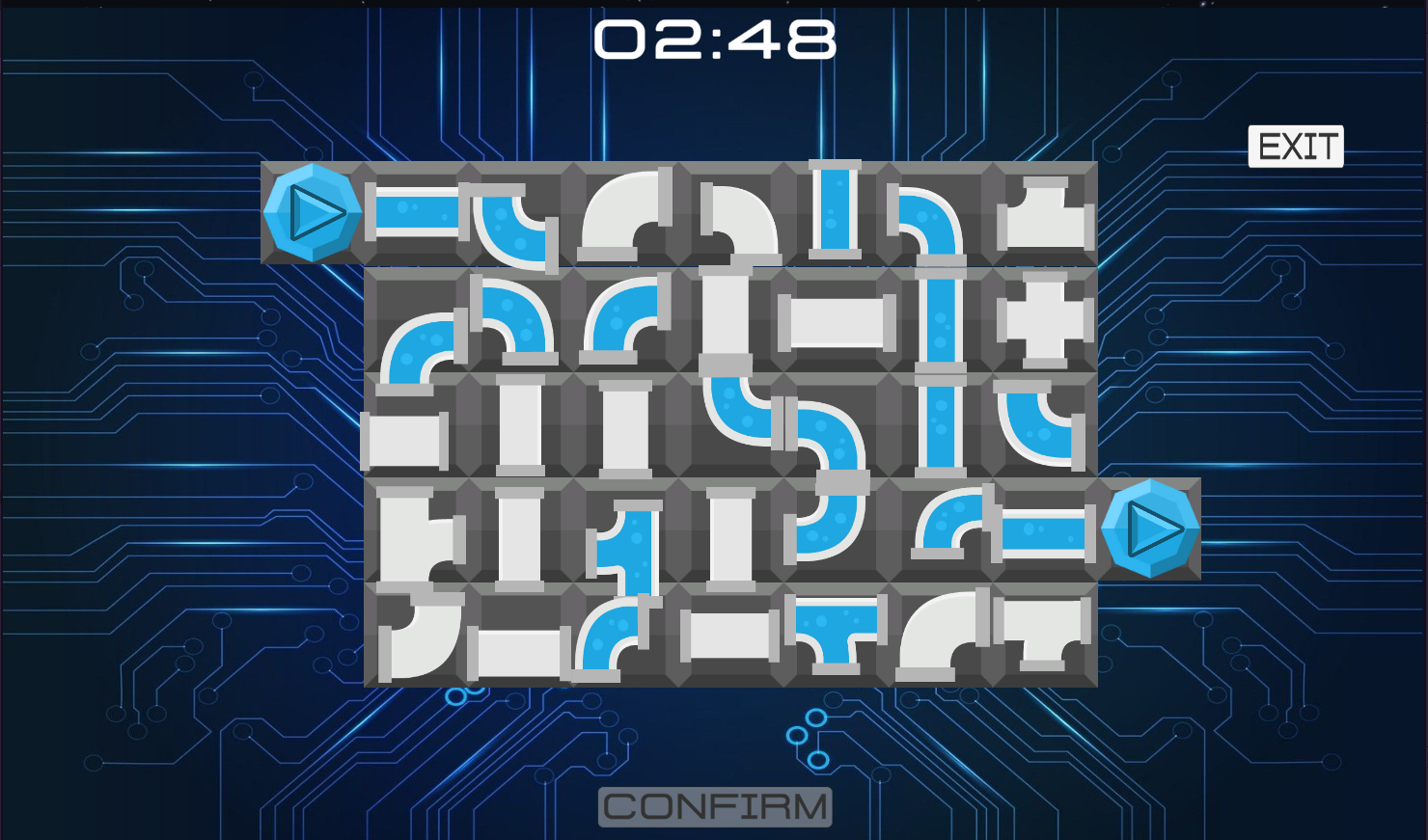
Figure 15: Shuffled Pipe Puzzle
A Physics 2D Raycaster and a script are attached to each pipe that is a part of the right solution to this puzzle. The script rotates the pipes 90 degrees on the z axis each time the player presses the left mouse button (see Figure 16).
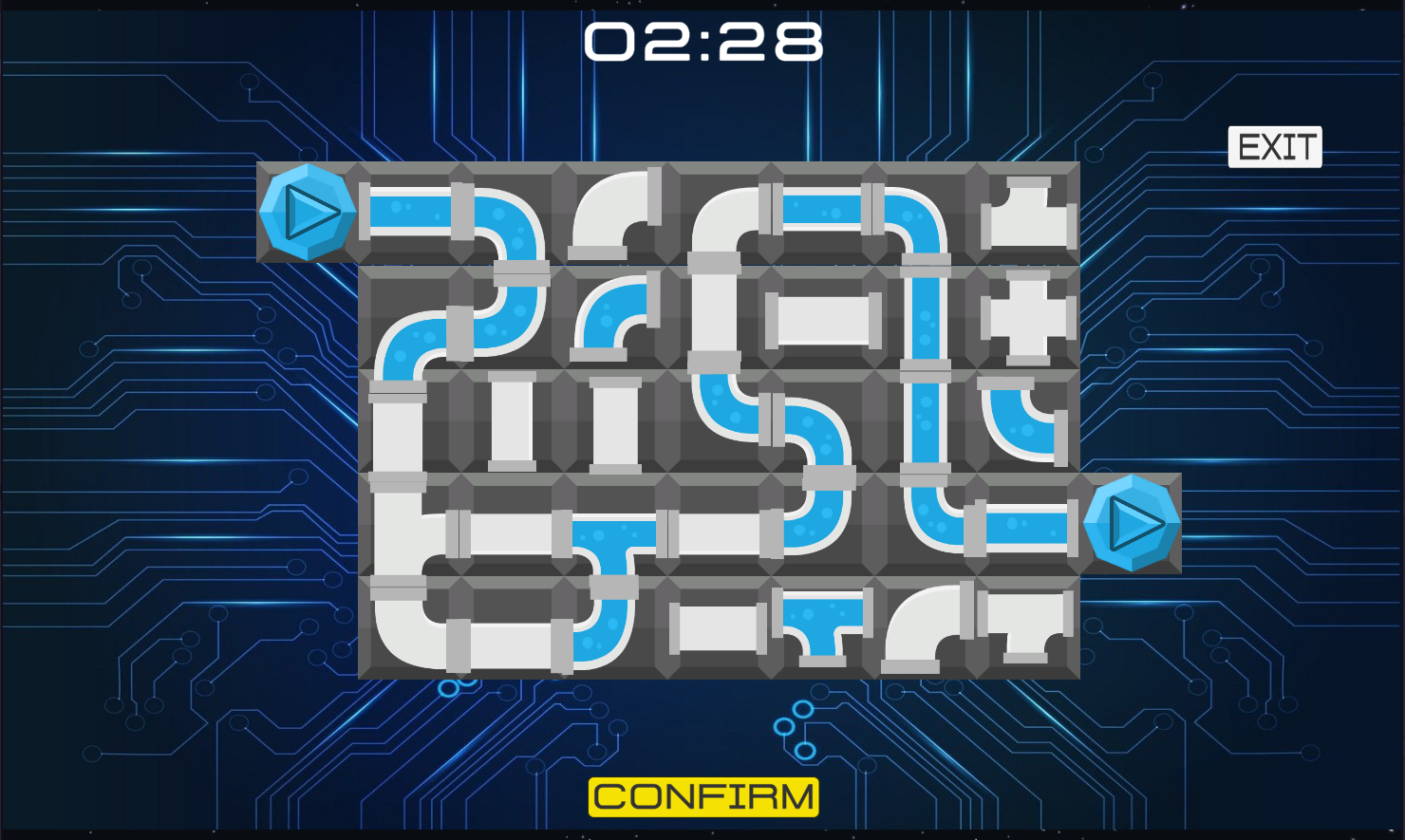
Figure 16: Solved Pipe Puzzle
I was able to create the rotation of the pipes because of the Unity interface, IPointerMouseDown. The script in the Start function shows us that the pipes randomly rotate each time the player launches a new game. The player can rotate the pipe that the mouse is pointing at with each press of the left mouse button thanks to the OnPointerDown() function, which accepts an event from the mouse as argument.
1
2
3
4
5
6
7
8
9
10
11
12
13
14
15
16
17
18
19
20
21
22
23
24
25
26
27
28
29
30
31
32
33
34
35
36
37
38
39
40
41
42
43
44
45
46
47
48
49
50
51
52
53
54
55
56
57
58
59
60
61
62
63
64
65
66
67
68
69
70
71
72
73
74
75
76
77
public class MovablePipes : MonoBehaviour, IPointerDownHandler
{
    private float[] rotations = { 0, 90, 180, 270 };

    public float[] correctRotation;

    private int possibleRotations = 0;

    [SerializeField]
    private bool isPlaced = false;

    [SerializeField]
    private GameManager gameManager;

    void Start()
    {
        possibleRotations = correctRotation.Length;

        int rand = Random.Range(0, rotations.Length);
        transform.eulerAngles = new Vector3(0, 0, rotations[rand]);

        if (possibleRotations > 1)
        {
            if (Mathf.Round(transform.eulerAngles.z) == correctRotation[0]
                || Mathf.Round(transform.eulerAngles.z) == correctRotation[1])
            {
                isPlaced = true;
                gameManager.CorrectMove();
            }
        }
        else
        {
            if (Mathf.Round(transform.eulerAngles.z) == correctRotation[0])
            {
                isPlaced = true;
                gameManager.CorrectMove();

            }
        }
    }

    public void OnPointerDown(PointerEventData eventData)
    {
        transform.Rotate(new Vector3(0, 0, 90));


        if (possibleRotations > 1)
        {
            if (Mathf.Round(transform.eulerAngles.z) == correctRotation[0]
                || Mathf.Round(transform.eulerAngles.z) == correctRotation[1]
                && isPlaced == false)
            {
                isPlaced = true;
                gameManager.CorrectMove();

            }
            else if (isPlaced == true)
            {
                isPlaced = false;
                gameManager.WrongMove();
            }
        }
        else
        {
            if (Mathf.Round(transform.eulerAngles.z) == correctRotation[0] && isPlaced == false)
            {
                isPlaced = true;
                gameManager.CorrectMove();
            }
            else if (isPlaced == true)
            {
                isPlaced = false;
                gameManager.WrongMove();
            }
        }
    }
}
1
2
3
4
5
6
7
8
9
10
11
12
13
14
15
16
17
18
19
20
21
22
23
24
25
26
27
28
29
30
31
32
33
34
35
36
37
38
39
40
41
42
43
44
45
46
47
48
49
50
51
52
53
54
55
56
57
58
59
60
61
62
63
64
65
66
67
68
69
70
71
72
public class GameManager : MonoBehaviour
{
    public GameObject pipeHolder;

    public GameObject[] pipes;

    public bool pipesCorrectOrder = false;

    [SerializeField]
    private int totalPipes;

    [SerializeField]
    private int correctedPipes = 0;

    [SerializeField]
    private GameObject pipeGridOB;

    [SerializeField]
    private GameObject confirmButtonOB;

    [SerializeField]
    private GameObject engageButtonOB;

    [SerializeField]
    private GameObject player;

    public Button confirmButton;

    public Button engageButton;

    // Start is called before the first frame update
    void Start()
    {
        totalPipes = pipeHolder.transform.childCount;

        pipes = new GameObject[totalPipes];


        for(int i = 0; i < pipes.Length; i++)
        {
            pipes[i] = pipeHolder.transform.GetChild(i).gameObject;
        }
    }

    public void CorrectMove()
    {
        correctedPipes++;

        if(correctedPipes == totalPipes)
        {
            confirmButton.interactable = true;
            pipesCorrectOrder = true;
            Confirm();
        }
    }

    public void WrongMove()
    {
        correctedPipes--;
    }

    public void Confirm()
    {
        confirmButtonOB.GetComponent<Image>().color = Color.yellow;
        Engage();
    }

    public void Engage()
    {
        //engageButton.GetComponent<Image>().color = Color.yellow;
    }
}
Technical Challenges & Solutions
Challenge 1: Pipes are not rotating correctly
I would like to talk about the issue I had getting the pipes to rotate correctly. I discovered that some of the pipes were not turning precisely 90 degrees. Putting a Debug.Log on the z-axis float I saw that Unity was not being sufficiently accurate with it and that the “if” conditions on lines 27, 57, and 73 of the script were frequently false and failed to trigger the bool to change to true. I found that utilizing float numbers frequently results in issues like these. I used Unity’s Mathf.Round() method to solve the problem, which returns the closest integer number while omitting the decimal section solving this issue.
1
2
3
if (Mathf.Round(transform.eulerAngles.z) == correctRotation[0]
    || Mathf.Round(transform.eulerAngles.z) == correctRotation[1]
    && isPlaced == false)
Learning Outcomes
Programming Skills Developed
During the development process I have learnt some important skills.
- Interact System: The Raycast interaction approach that makes use of the many interactables has truly satisfied me. In this way, additional interactables can be easily added to the game, speeding up the development process. The player can precisely point at an object to receive a message on the screen on how to interact with it, which reduces the learning curve associated with the controls.
- Abstract Methods: fundamentals to create a scalable and maintainable code base
Game Development Insight
- Player Experience: Creating an engaging experience through low-poly graphics and appetible music and SFX
- User Interface: simple controls
- Game Flow: with the aid of sound and visual cue the player can experience a nice feed back of their progresses
What I Learnt
Developing Cosmic Control Enterprises thought me the importance of abstract classes and how useful is in terms of maintainability of the code. This project strengthened my understanding of:
- Clean Code Practices: Writing readable, maintainable code
- Unity Inspector: Implementing the scripts that uses Unity Inspector (as an example changing the safe code not in the script made testing easier)
- Game Mechanics: Designing the puzzles and connecting them to each other to have a good game flow
Technical Specifications
- Language: C# (Script)
- Framework: Unity
- Platform: Windows
- Development Tools: Unity/Visual Studio
- Version Control: Git with GitHub
- Architecture: C# Scripting with Unity
Future Improvements
If I were to expand this project, I would consider:
- Rotating the additional pipes: The puzzle seemed too simple to me because I was unable to move the additional pipes. Rotating the additional pipes adds a significant challenge for the player, and at this stage, the puzzle can have multiple possible solutions rather than just one.
- Alternative Endigs: alternative endings based on different casualties during the game.
- Inventory System: It would be good to include a proper inventory system in the game so that the player can collect more pickable items.
- More complex puzzles: An additional challenge would require the player to locate an object within the game to break the last seal, as the hammer broke in their hands after breaking the third seal, rather than relying only on the hammer to break the seals.
- Random Events: To keep the player from completing the puzzle, introduce a few random events into the game. Having a second console with buttons to change the room’s pressure or temperature over time, rather than just once, forces the player to leave any activity or attempt to complete the puzzles in order to solve these random events.
- UI Improvement: the ability to highlight an interactable when the player points at them.
- Player Movement: ability to move the character to explore the environment and find more items to interact with.
- Save System: Game state persistence between sessions
External Assets
- Synty Polygon - Sci-Fi Space Pack
- SciFi Fantasy Soundscape – Music by Gioele Fazzeri from Pixabay
- Intergalactic Space – Music by Verzard from Pixabay
- Achive Sound – SFX by Liecio from Pixabay
- Bing1 – SFX by Pixabay from Pixabay
- button 9 – SFX by Pixabay from Pixabay
- Button 13 – SFX by skyscraper_seven from Pixabay
- Item Pickup – SFX by Pixabay from Pixabay
- Metal Scrape – SFX by Pixabay from Pixabay
- Open Drawer – SFX by Pixabay from Pixabay
- Robot Hand – SFX by Pixabay from Pixabay
- Shuttlelaunch – SFX by Pixabay from Pixabay
- circuit-design-electronics-digital-6613812 – Image by sbgonti from Pixabay
- certification-logo-label-luxury-1705088 – Image by Gorkhs from Pixabay
- rocket-spaceship-flying-rocket-ship-5621760 – Image by ArtRose from Pixabay
- spaceship-planet-galaxy-space-3827533 – Image by Yuri_B from Pixabay
- technology-background-geometric-4237426 – Image by TheDigitalArtist
- technology-connectivity-dots-screen-7111756 – Image by tungnguyen0905 from Pixabay
- How to make a simple Puzzle Game in Unity - Rotate Puzzle Game - Part 1/2 – Video Tutorial
- #1 FPS Movement: Let’s Make a First Person Game in Unity! – Video Tutorial
- Pipes sprites – By Kenney
References
Corey, J. S. A. (2011) The Expanse. United States: Orbit Books.
Four Quarters team (2015) Please, don’t touch anything! Available at: Please, don’t touch anything (Accessed: 22 August 2024)
Links
- GitHub Repository View the complete source code
- Download the demo and the full academic report
This project shows my Unity, C# scripting, and game design skills. It showcases my ability to produce a finished product within the limited time due the deadline with limited low-poly assets for the game environment. Therefore, clean code practice.